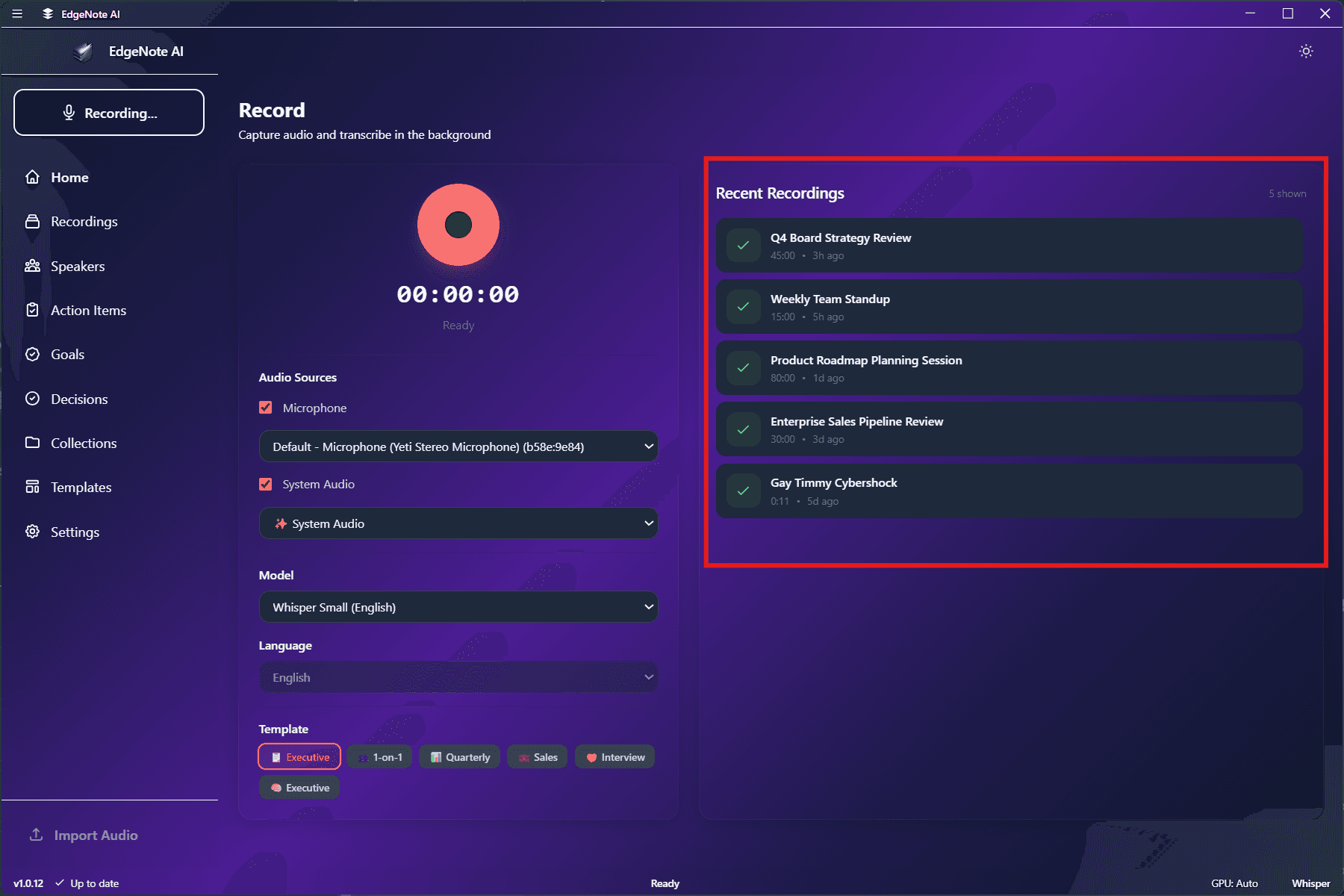
Recording
12 featuresCapture audio from microphone and system with intelligent meeting detection.
Audio Sources
Capture your voice from any connected microphone. Select from available input devices in the recording settings.
Capture audio playing through your computer, including meeting participants, videos, and any other system sounds.
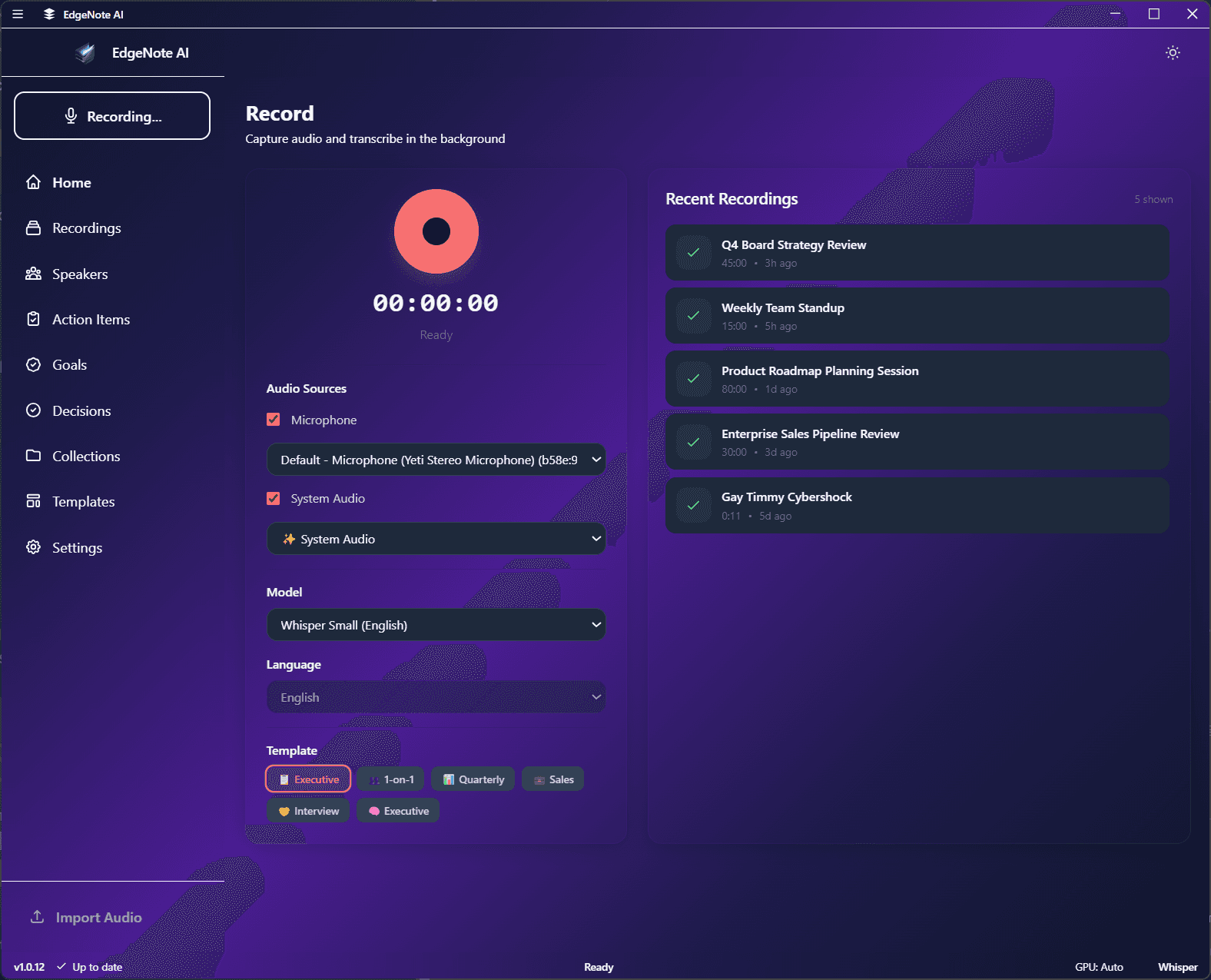
Meeting Detection
EdgeNote AI can automatically detect when you join a meeting and prompt you to start recording. Supported platforms:
Zoom
Microsoft Teams
Slack Huddles
Google Meet
Privacy Note
Recording Controls
Start / Stop
Click the large record button to start. Click again (or the stop button) to end the recording. The recording is automatically saved and queued for processing.
Pause / Resume
Pause the recording during breaks. The timer stops, and recording resumes seamlessly when you continue.
Timer & Auto-Stop
View the recording duration in real-time. Optionally set an auto-stop timer in Settings to automatically end recordings after a set duration.
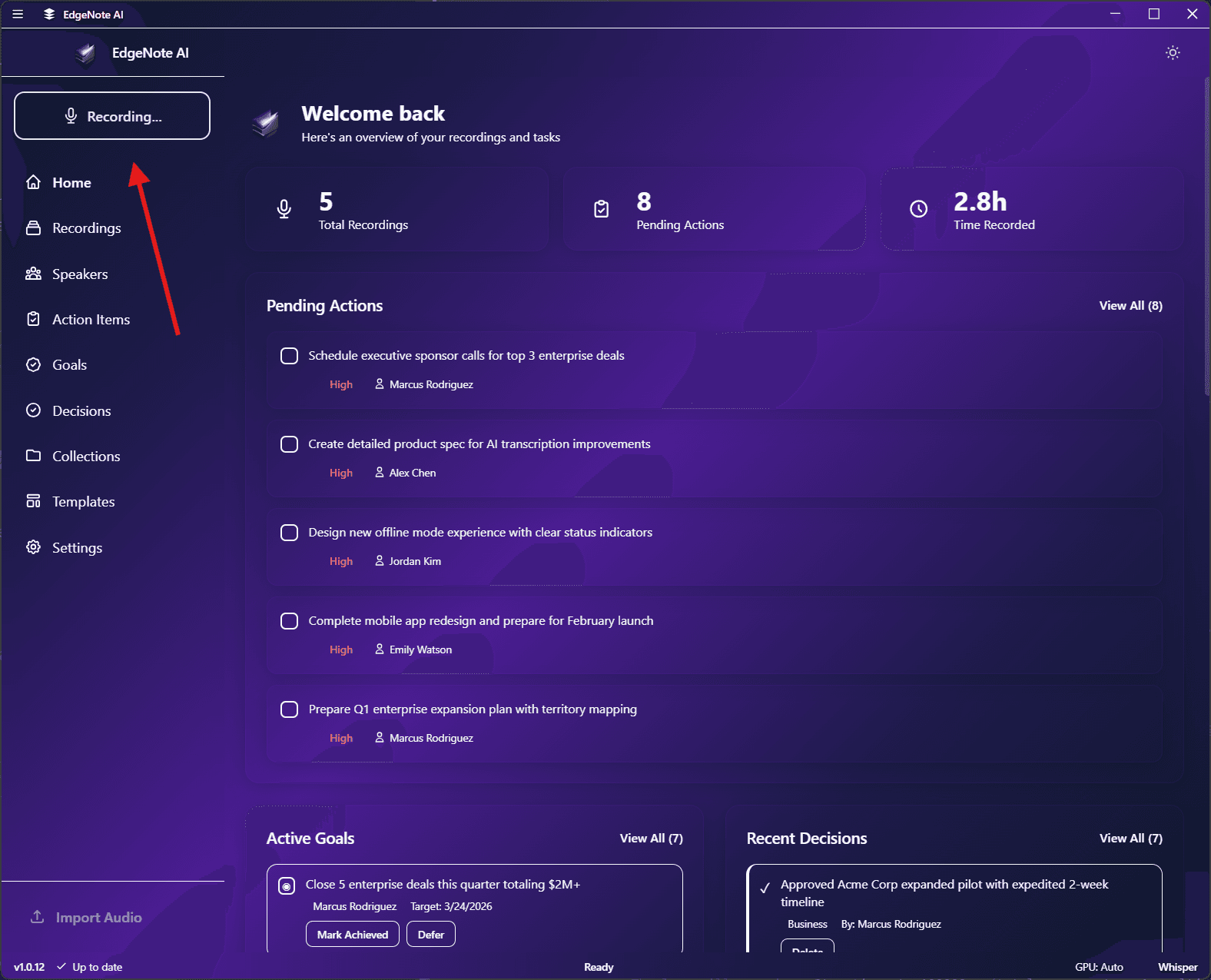
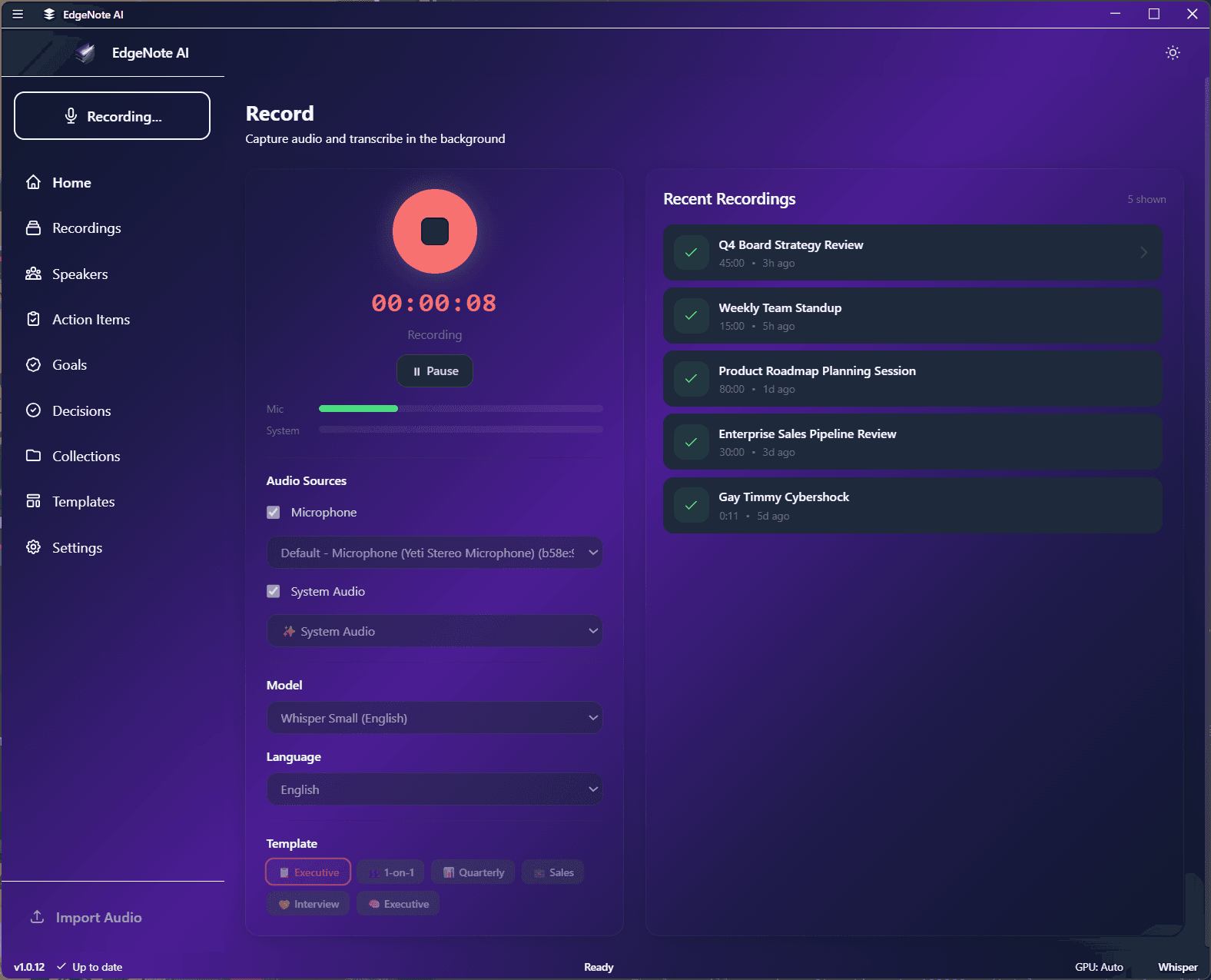
Audio Levels
The recording interface displays real-time audio levels to help you verify that audio is being captured correctly.
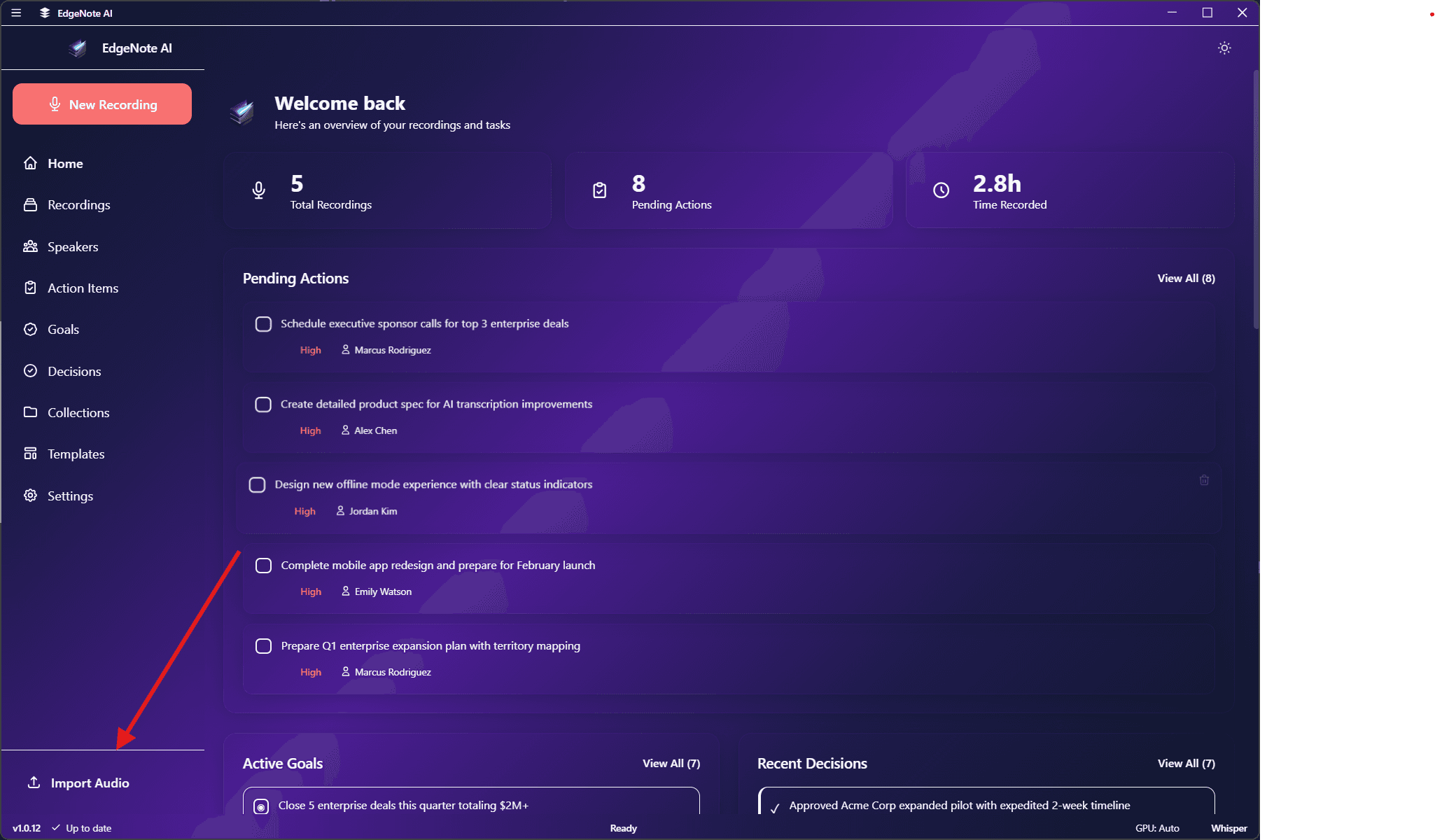
Audio Import
Already have audio files? Import them directly into EdgeNote AI for transcription and summarization.
Supported Formats
Recording Queue
All recordings are added to a processing queue. The queue shows the status of each recording: