Recordings Screen
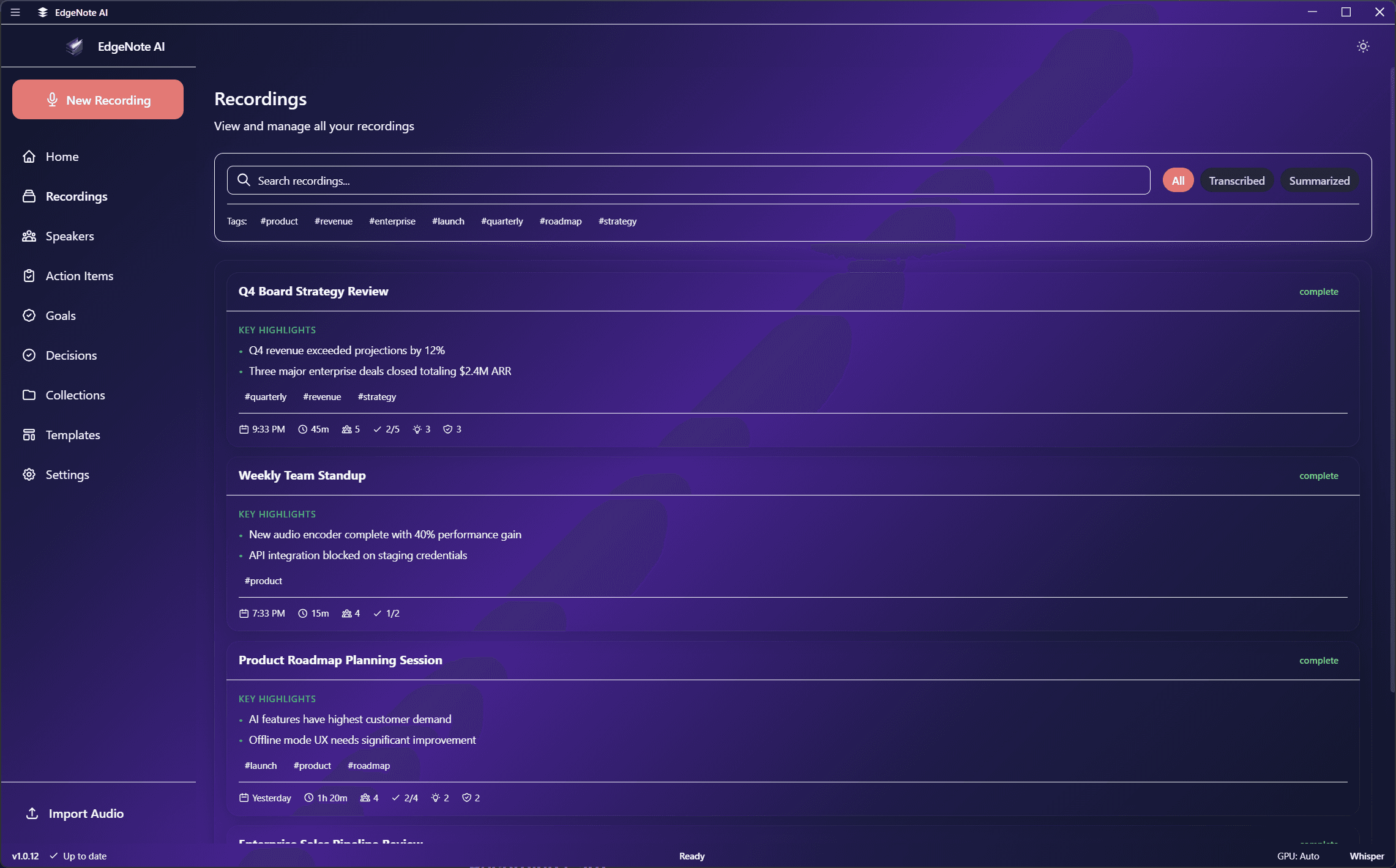
Browse, search, and manage all your recordings with powerful filtering.
Overview
The Recordings screen shows all your recordings in a list view with search, filtering, and sorting options.
Search & Filter
Find recordings quickly with various filter options:
Search across titles, transcripts, and summaries. Results highlight matching text.
Filter by Today, This Week, This Month, or select a custom date range.
Show only recordings that are Processing, Complete, or have Errors.
View recordings from a specific collection or show uncategorized ones.
Recording Card
Each recording is displayed as a card showing:
Product Planning Meeting
March 15, 2024 • 1:23:45
Discussed upcoming feature roadmap and prioritization for Q2. Key decisions made about the mobile app launch timeline...
Click on any recording to view its full details including transcript, summary, and insights.
Sorting Options
Sort recordings by:
Recording Actions
Right-click or use the menu on any recording for these actions:
Add to Collection
Organize into a collection
Change Template
Apply different summary template
Re-summarize
Generate summary again
Export
Export as text, markdown, or PDF
Archive
Move to archive
Delete
Permanently remove recording