Settings Screen
Configure app behavior, models, appearance, and advanced options.
Overview
The Settings screen provides access to all configurable options in EdgeNote AI. Toggle between Basic and Advanced modes for different levels of control.
Essential settings for most users. Simplified model selection and automation options.
Full control over models, processing parameters, and system settings.
Settings Categories
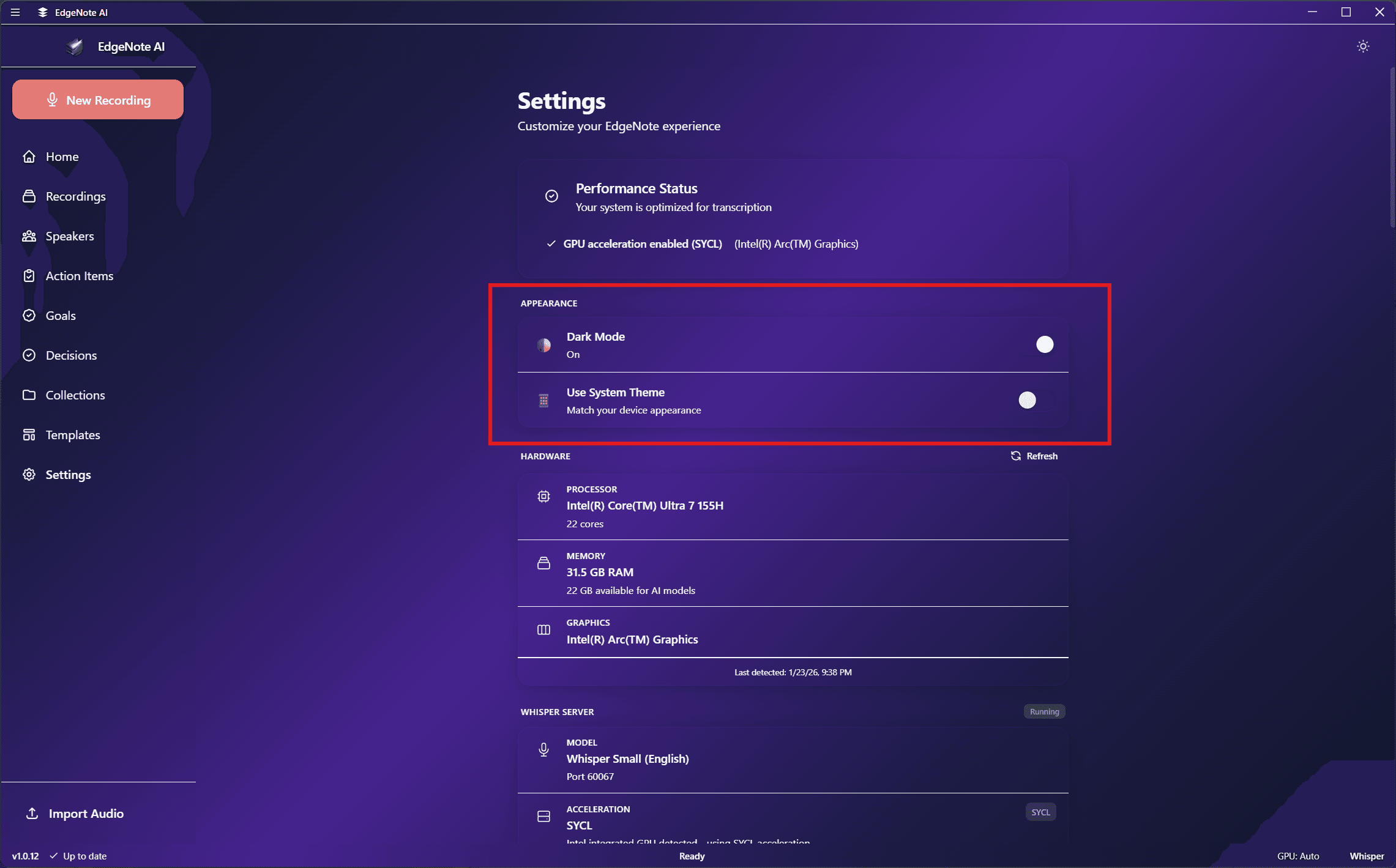
Appearance
Dark mode is enabled by default. EdgeNote AI uses a consistent dark theme.
Transcription
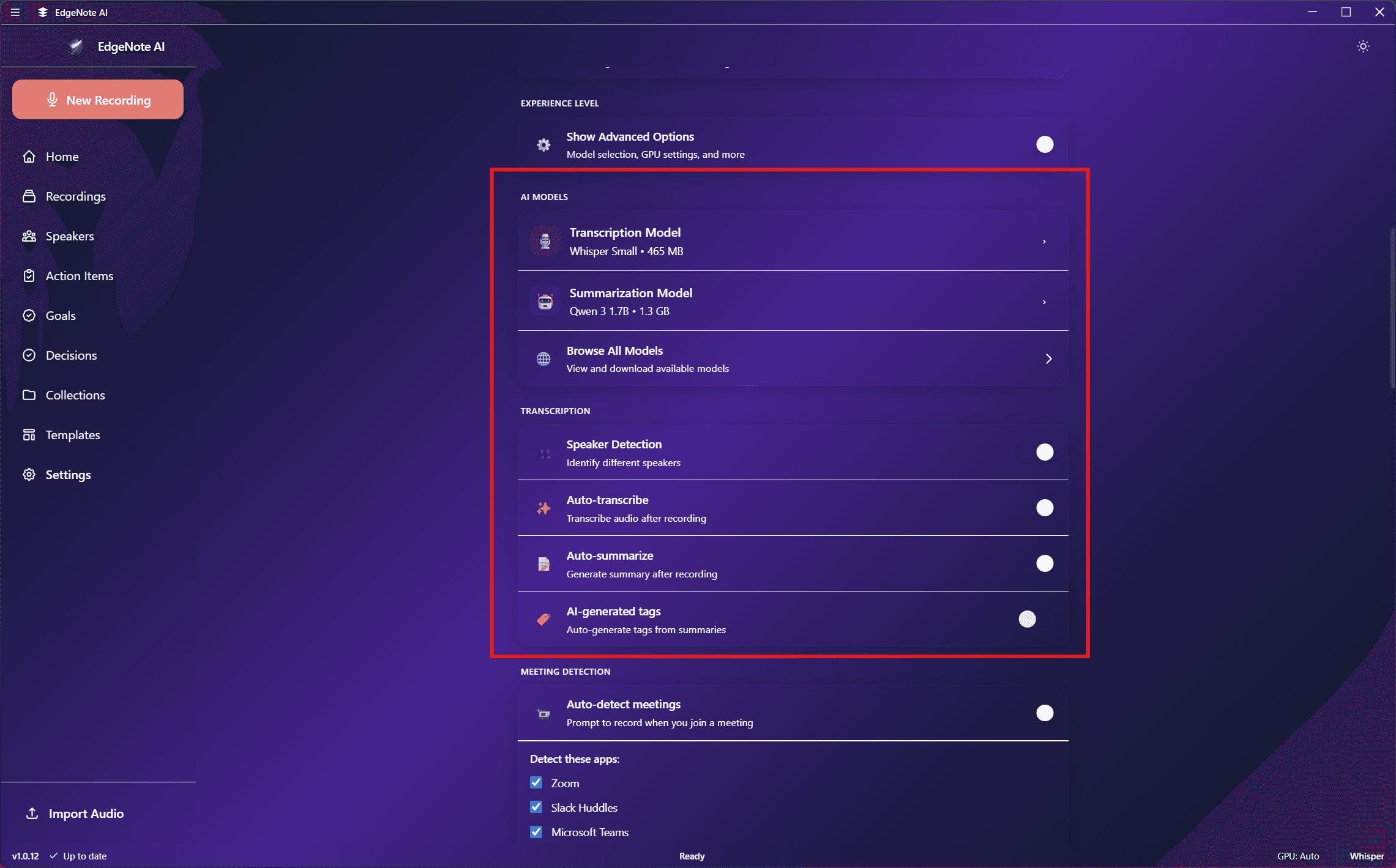
Summarization
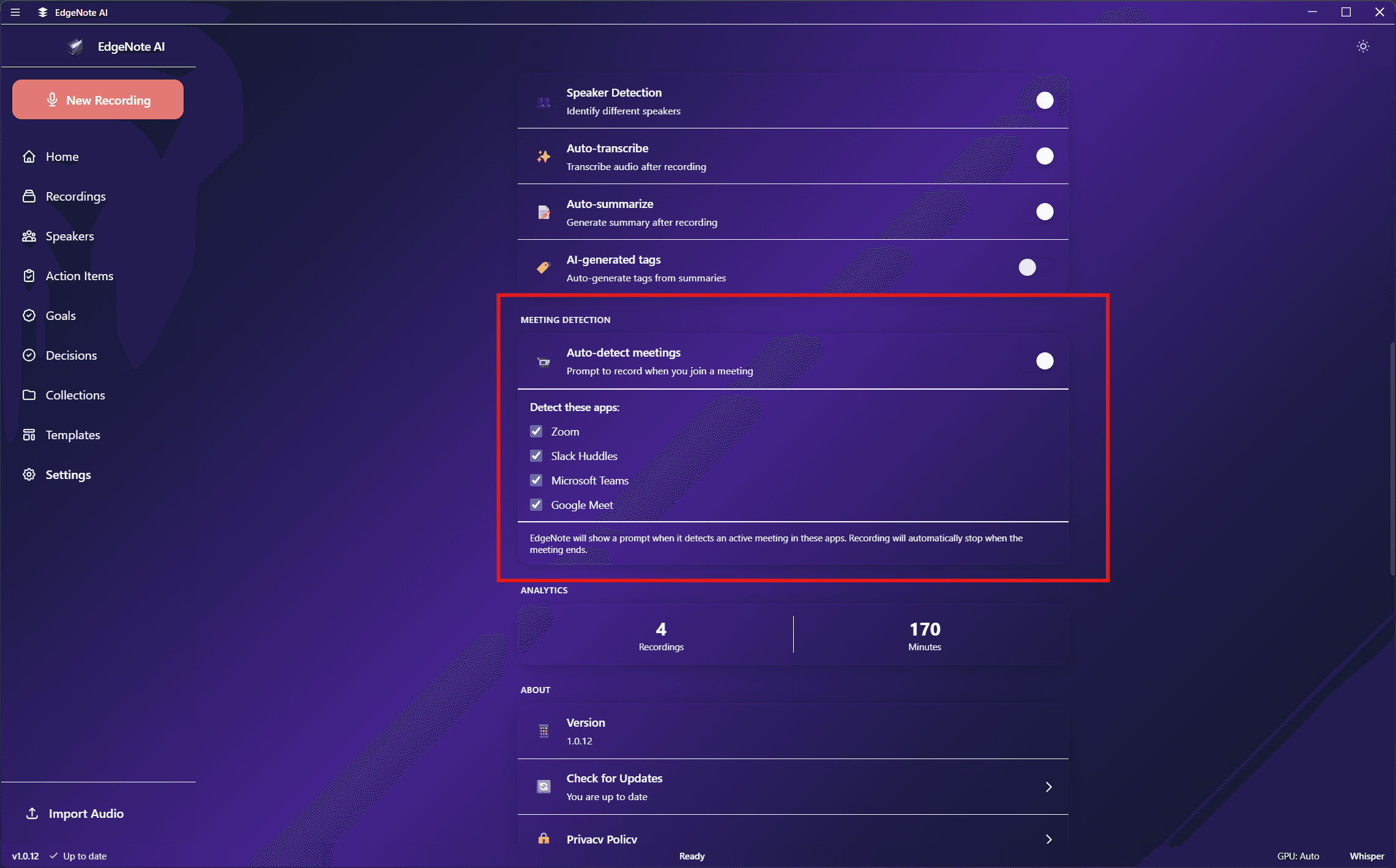
Meeting Detection
Configure which apps trigger meeting detection prompts:
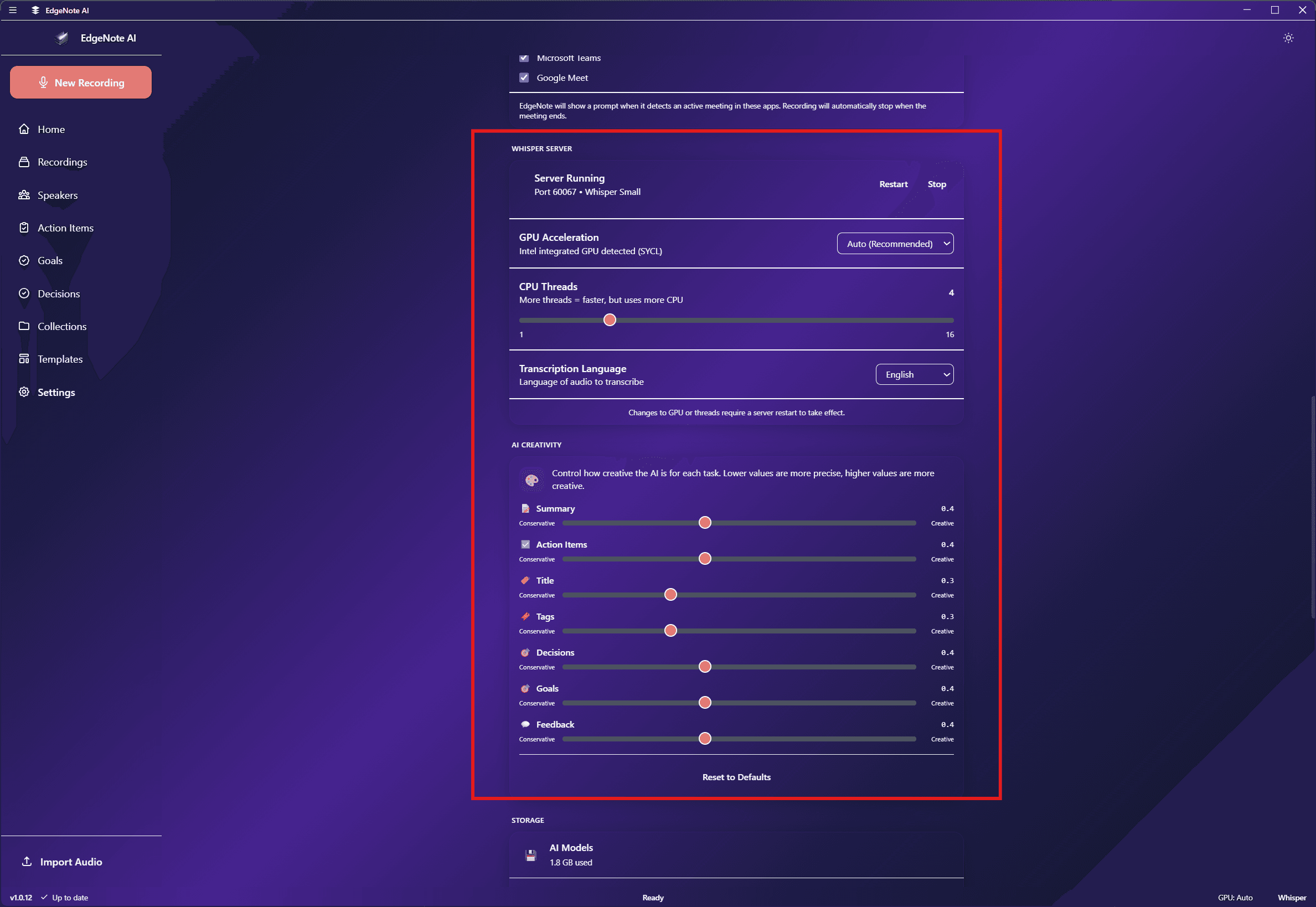
Advanced Settings
Toggle to Advanced mode for additional options:
CPU Threads
Number of threads for CPU processing
Temperature
LLM creativity setting (0.1-1.0)
VAD Threshold
Voice activity detection sensitivity
Custom Model URL
Download GGUF models from Hugging Face
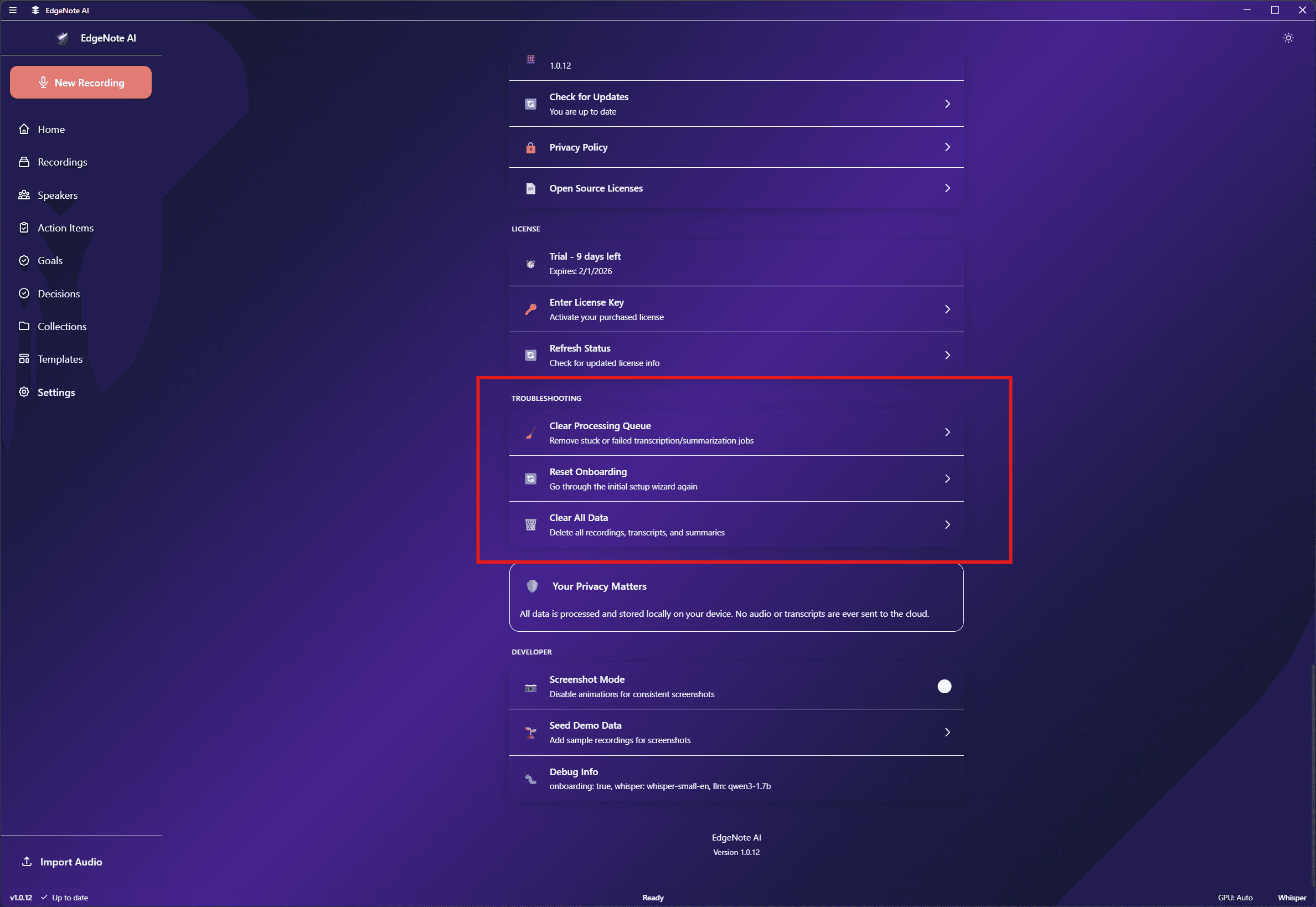
Troubleshooting
Options for resolving issues and resetting the app:
Clear Processing Queue
Use this when a transcription or summarization job gets stuck in a loop. Signs of a stuck job:
- The app shows "Processing" immediately on every launch
- Same recording keeps being processed repeatedly
- Summarization times out repeatedly
Clearing the queue removes all pending and failed jobs. You can then manually re-transcribe or re-summarize recordings from their detail page.
Reset Onboarding
Go through the initial setup wizard again. Useful if you want to re-select models or change initial settings. Restart the app after resetting to see the setup wizard.
Clear All Data
Permanently delete all recordings, transcripts, summaries, and other data. This cannot be undone. Your AI models will remain downloaded.
License & Account