Speaker Management
8 featuresIdentify, track, and manage speakers across recordings with visual relationship mapping.
How It Works
EdgeNote AI uses advanced speaker diarization models to detect when different people are speaking in a recording. Speakers are automatically labeled and can be renamed, merged, and tracked across multiple recordings.
Speaker diarization runs automatically during transcription. Each speaker is assigned a unique label (Speaker 1, Speaker 2, etc.) and color.
Once you name a speaker, EdgeNote AI can recognize them in future recordings based on voice characteristics.
Speaker List
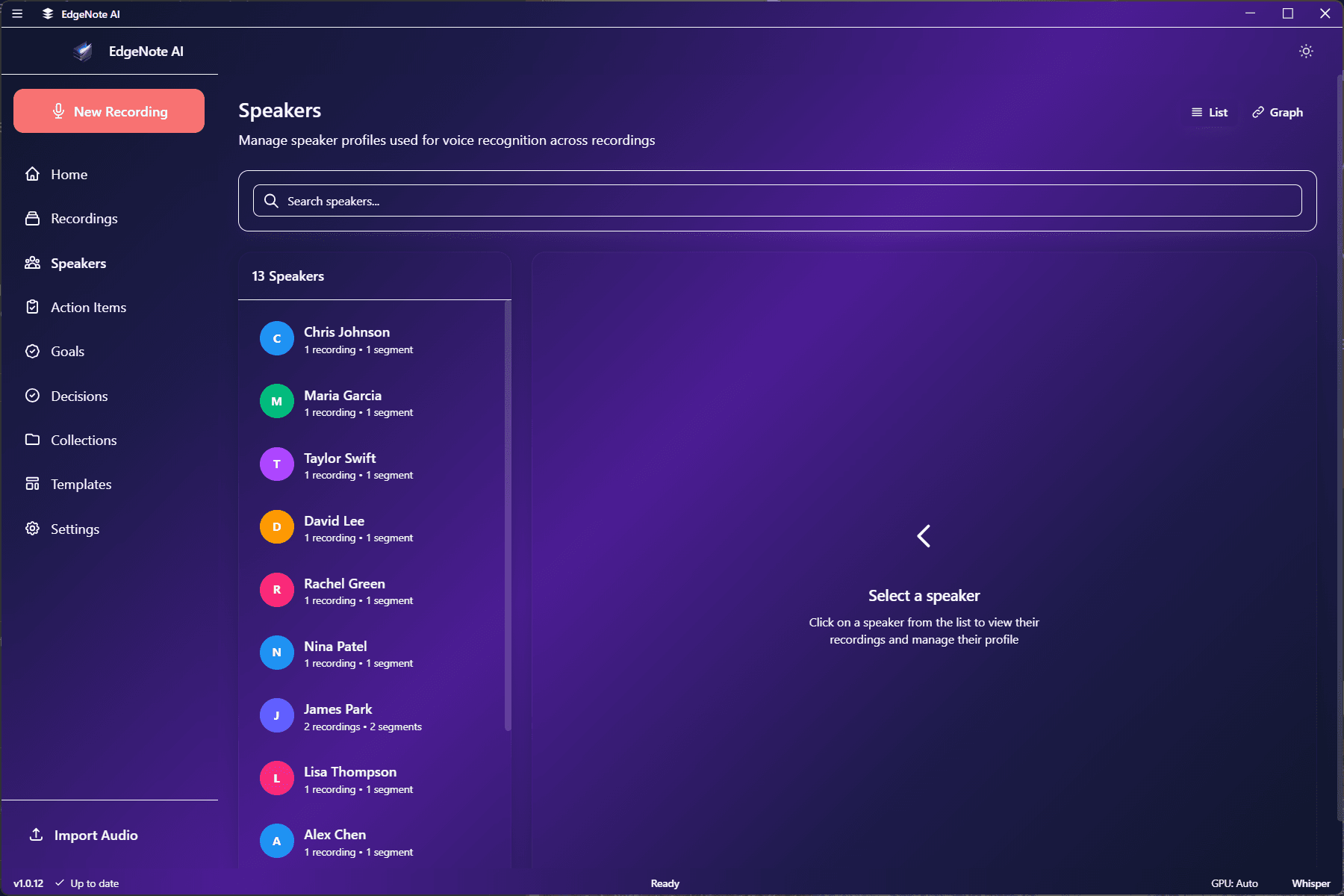
View all speakers across your recordings in a single list. Each speaker shows:
Name / Label
Display name (editable)
Recording Count
Number of recordings they appear in
Total Speaking Time
Cumulative time across all recordings
Speaker Graph
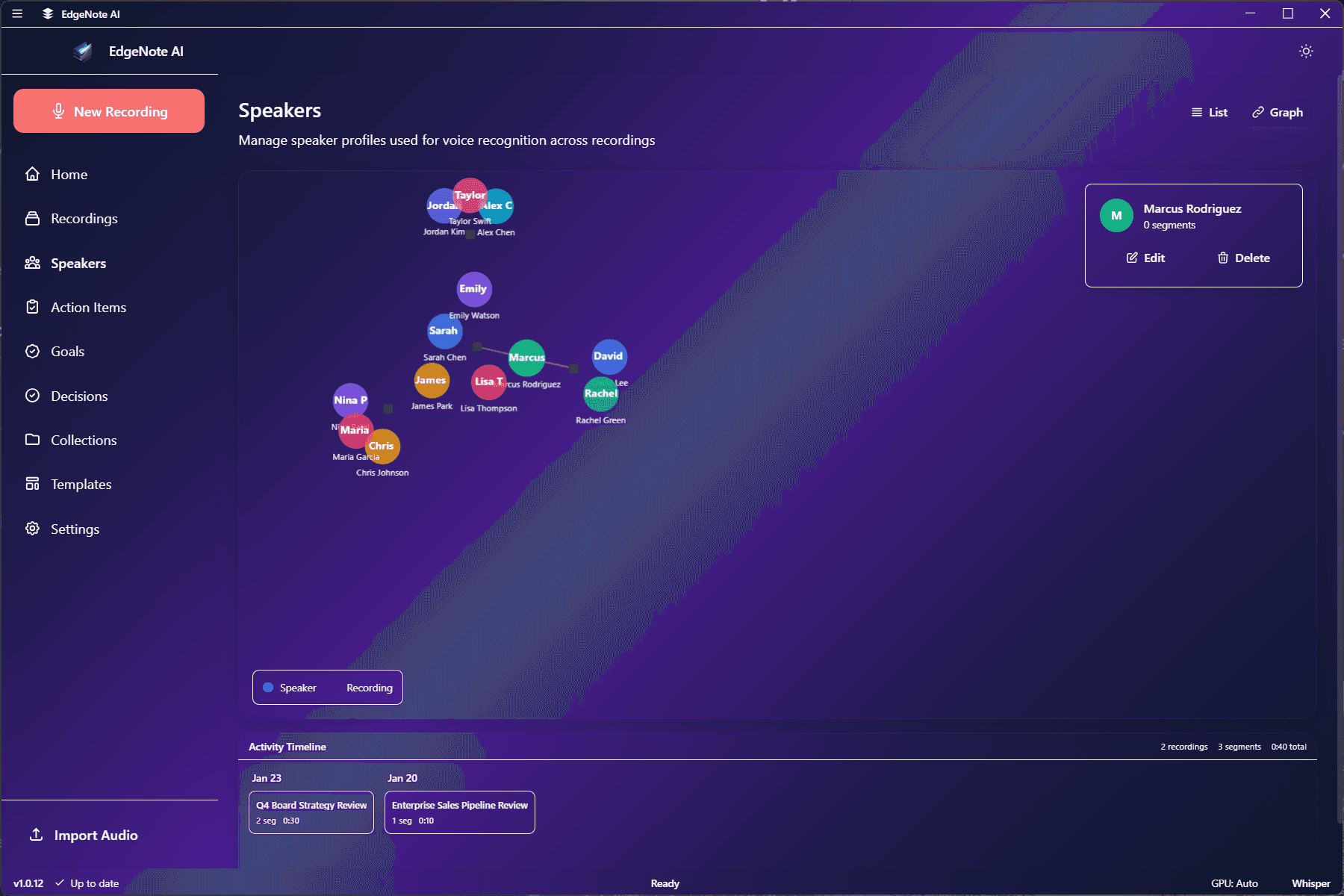
Visualize relationships between speakers with an interactive graph. The graph shows:
Lines connect speakers who have appeared in the same recording. Thicker lines indicate more frequent co-appearances.
Larger nodes represent speakers with more total speaking time across all recordings.
Managing Speakers
Rename
Change "Speaker 1" to the person's actual name. This name persists across all recordings where the speaker appears.
Merge
Combine two speakers into one when the same person was detected as different speakers across recordings. All segments are reassigned to the merged speaker.
Color
Assign a custom color to each speaker for easy visual identification in transcripts and the timeline view.
Delete
Remove a speaker from the system. Associated segments will be marked as "Unknown Speaker" but the audio and text remain.
Speaker Timeline
Within each recording, view a timeline showing when each speaker was talking. This helps you quickly navigate to specific parts of a conversation.
