Getting Started
Get EdgeNote AI up and running in just a few minutes.
1. Download & Install
Download EdgeNote AI for your operating system from the official website or your dashboard.
- Download the .dmg file
- Open and drag to Applications
- Allow the app in Security settings if prompted
- Download the .exe installer
- Run the installer
- Follow the installation wizard
First Launch
2. Configure AI Models
EdgeNote AI uses two types of AI models:
Whisper Models (Transcription)
Convert speech to text. The default Whisper Medium model works well for most users. For multilingual support, use Whisper Large V3 Turbo.
Learn more about transcription models →LLM Models (Summarization)
Generate summaries and extract insights. The default Qwen 3 4B model provides excellent quality for most desktops.
Learn more about summarization models →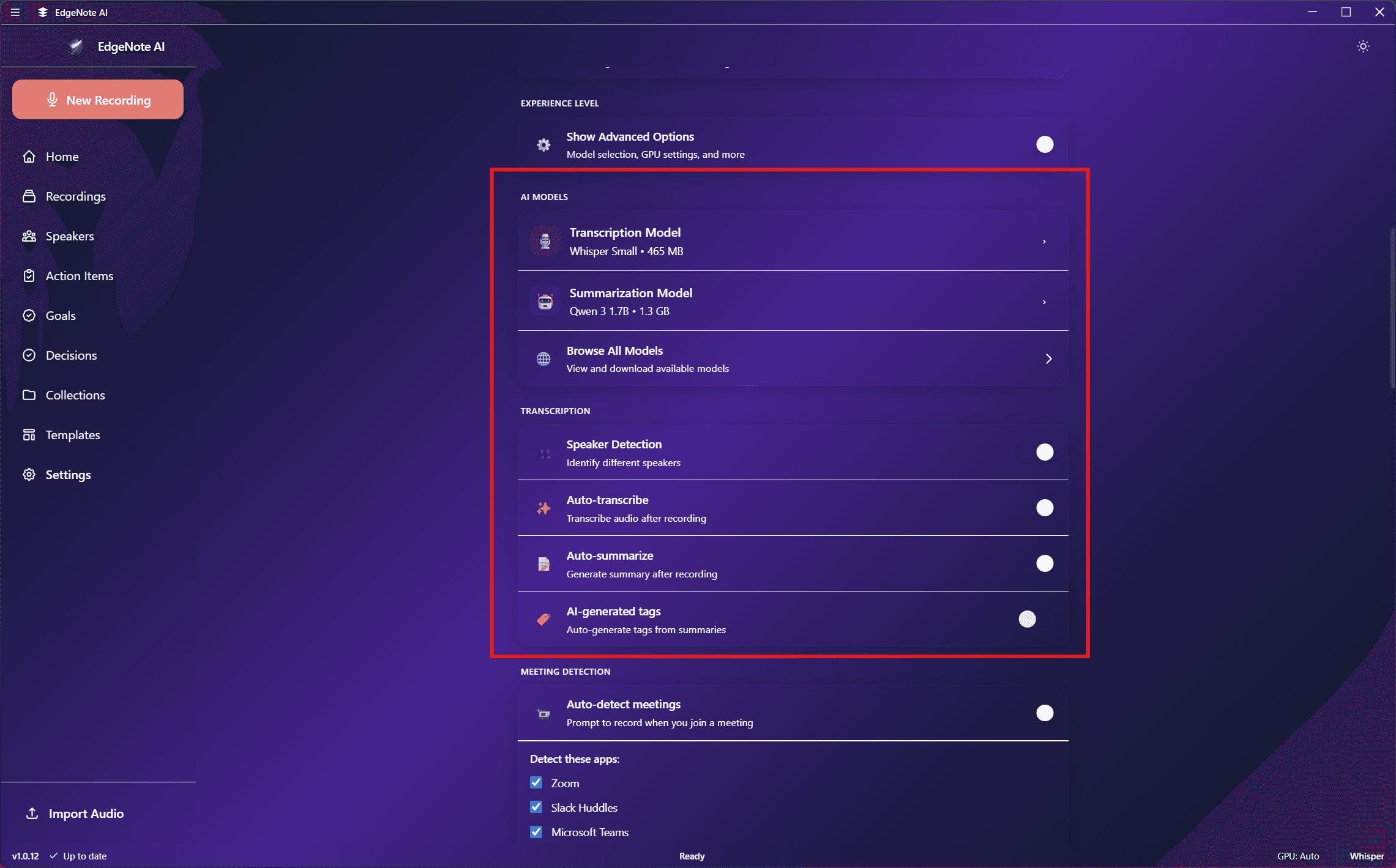
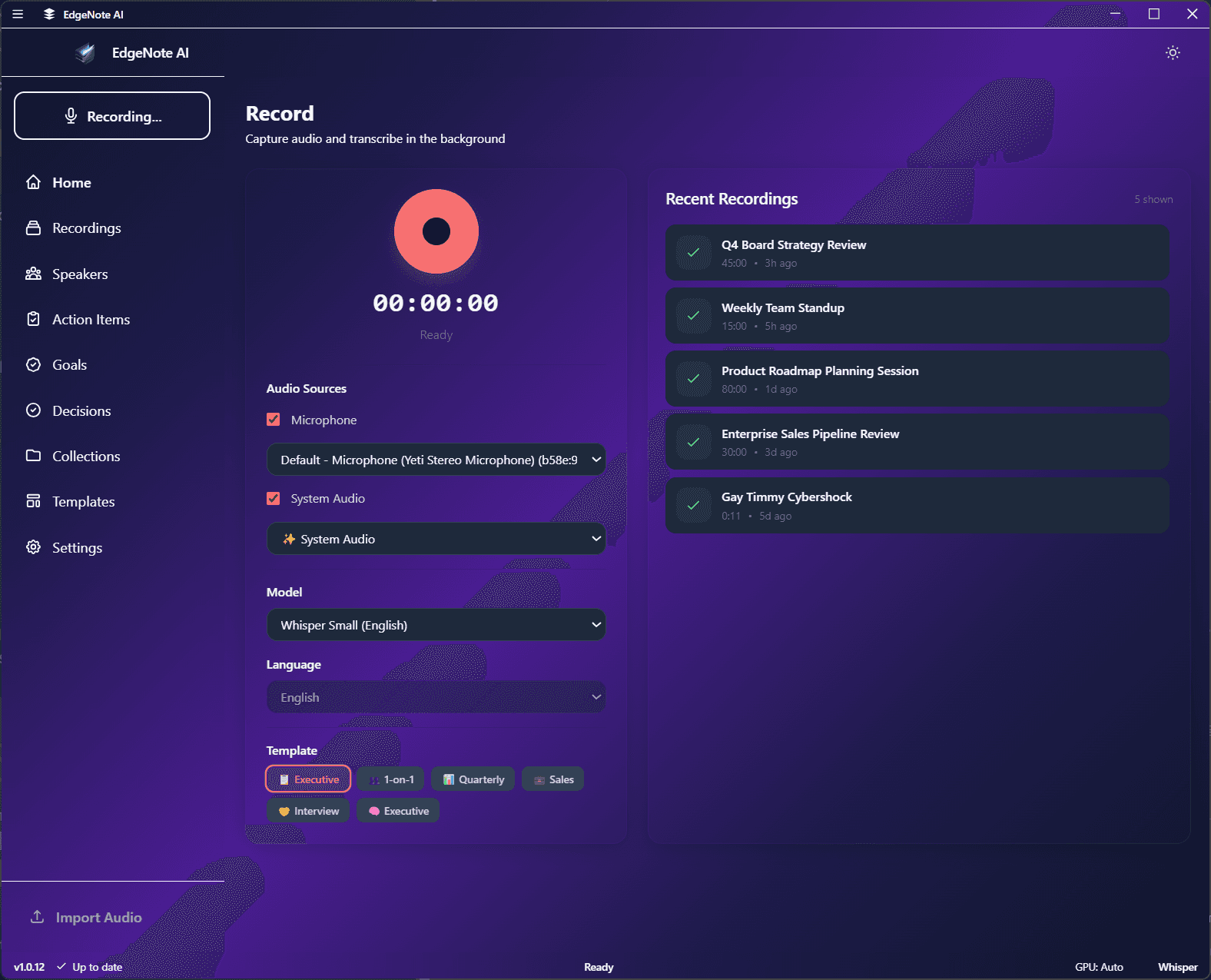
3. Start Your First Recording
Open EdgeNote AI
Launch the app from your Applications folder (macOS) or Start menu (Windows).
Click the Record Button
Click the large record button on the home screen. Select your microphone and optionally enable system audio capture.
Choose a Template (Optional)
Select a template like "Meeting Notes" or "Lecture Notes" to customize the summary output format.
Stop & Review
Click stop when finished. EdgeNote AI will automatically transcribe and summarize your recording. Review the results, action items, and key decisions.
Next Steps
Recording Features
Learn about audio import, meeting detection, and recording queue.
Custom Templates
Create custom templates with YAML for specialized summaries.
Speaker Management
Identify speakers and track them across recordings.
Hardware Requirements
Check RAM and GPU requirements for different models.